Mobile CRM app: customers, tasks and invoices on your phone
Your team opens the same CRMiUS on the phone as at the desk: the customer card before a call, the task checklist on site, the invoice status before a meeting. Each change goes into the same database.
What is a mobile CRM?
A mobile CRM is your company CRM on a phone: the same customers, deals, tasks and invoices as on the desktop, saved to one database. CRMiUS works in the mobile app and in any mobile browser. Each employee sees what their role allows, and push notifications report new assignments, mentions and reminders.
- Customer card: contacts, notes, statement, invoices, payments, projects, tickets and files
- Tasks with checklists, comments, attachments and a timer
- Invoices: PDF, sending by email, recording a payment
- Basic $100/month, Advanced $150/month; 14-day free trial with full access, no bank card (see pricing)
Real CRMiUS screens on a phone
Taken on a 390-pixel-wide phone screen in the public CRMiUS demo (fictional company Northwind Supply Co.). Open the same demo on your phone without signing up.
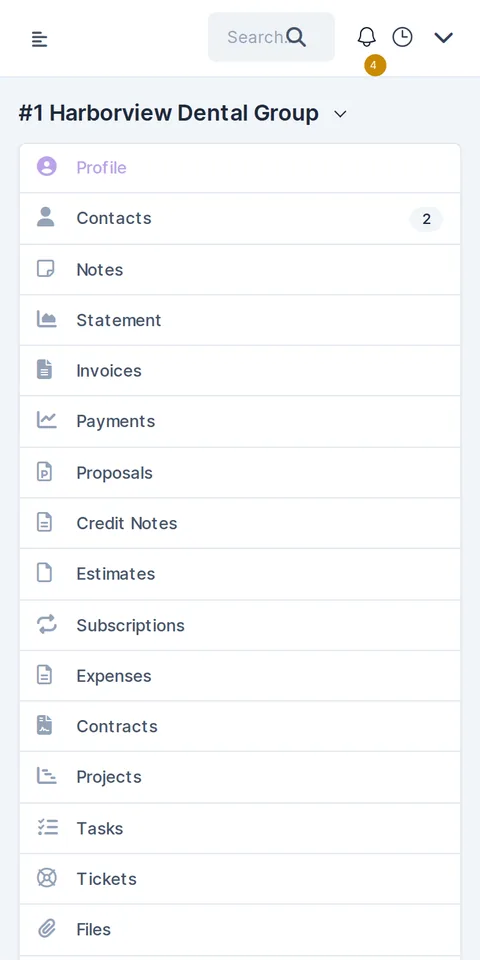
Customer cardProfile, contacts, notes, statement, invoices, payments, proposals, estimates, contracts, projects, tasks, tickets, files. 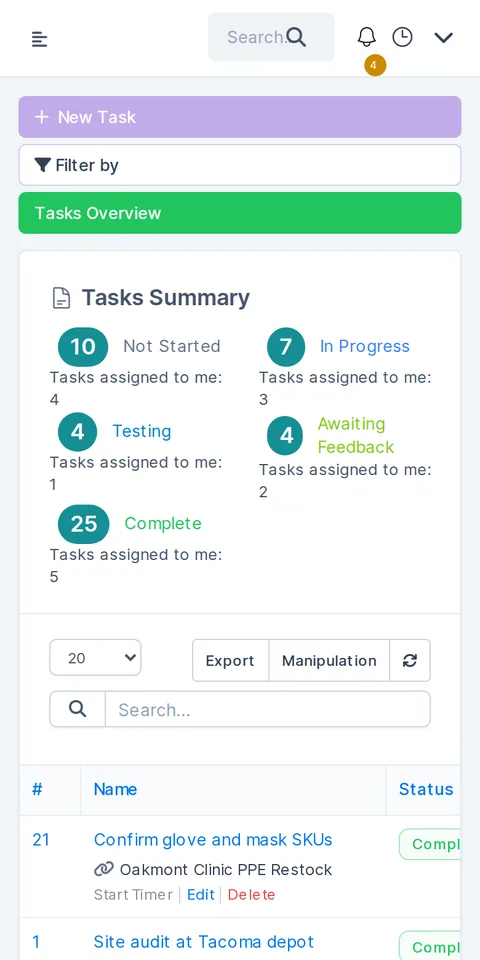
Tasks overviewNot Started, In Progress, Testing, Awaiting Feedback, Complete, plus the tasks assigned to me. 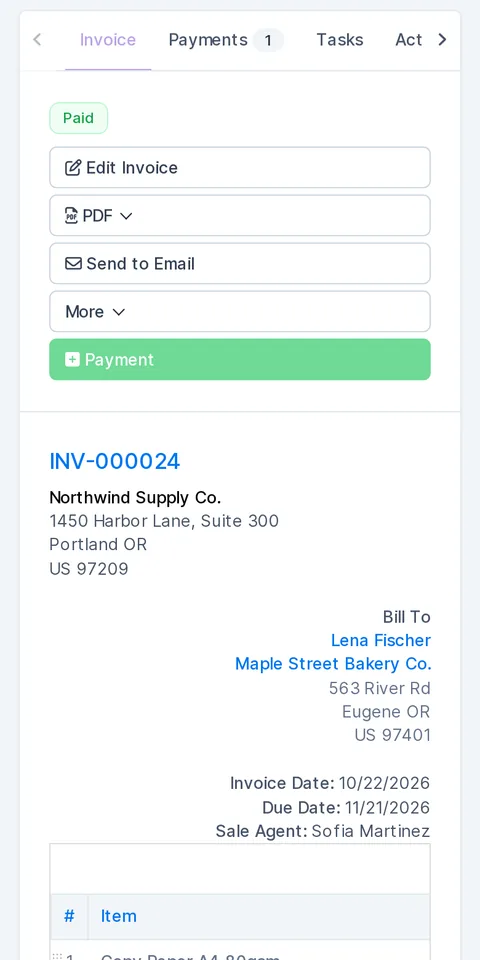
InvoiceStatus, edit, PDF, send by email and record a payment.
Screens from the CRMiUS live demo, phone width 390 px. Swipe sideways to see all three.
From the phone
What your team does in CRMiUS on the go
Convert a lead after the meeting
Open the lead, add a note and convert it into a customer right on the phone.
Check the customer before a call
Statement, unpaid invoices, payments and tickets are tabs of the same customer card.
Close a task on site
Tick the checklist items, leave a comment and attach a photo or a file to the task.
Log time with a timer
Start the timer on the task: the hours go to timesheets and can be billed to the project (Advanced plan).
Send an invoice
Open the invoice, download the PDF or send it by email, and record the payment when the customer pays.
React to notifications
Push notifications: a task assigned to you, a new ticket in your department, an invoice payment, a mention.
Keep meetings in the calendar
Staff calendar with reminders; Google Calendar connects through the Google Workspace integration.
See the numbers
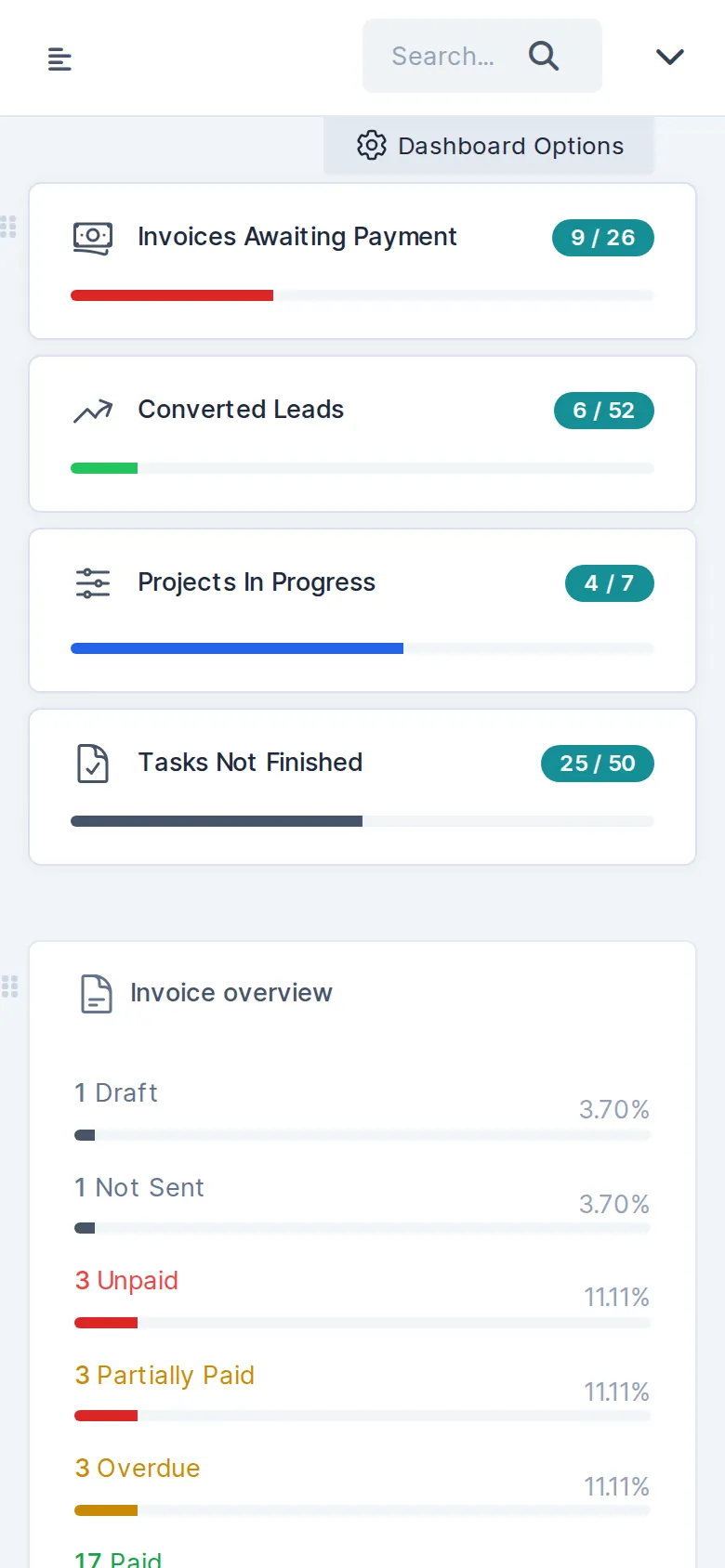
Dashboard widgets: invoices awaiting payment, converted leads, projects in progress, unfinished tasks (reports and dashboards).
How one task travels between the office and the phone
- 01The office assignsA manager creates a task in the customer’s project with a deadline and a checklist.
Not Started - 02The phone gets a pushThe assignee gets a notification and opens the task.
Push - 03Work on siteChecklist ticked, timer running, photo attached, comment for the manager.
In Progress - 04Back in one databaseThe project and the customer card show the result; the hours land in the timesheet.
Complete - 05BillingProject hours become invoice lines; the customer gets the invoice by email or in the customer portal and can pay online.
Invoice
At the deskOn the phone
Who opens CRMiUS on the phone
Sales managers
Lead card before the meeting, note and next stage right after it.
Field staff and technicians
Tasks with checklists and photos, time from the timer.
Support agents
New tickets of the department arrive as notifications; the reply goes from the ticket.
Owners and heads of department
Dashboard, invoices awaiting payment and unfinished tasks at a glance.
How to start with CRMiUS on your phone
- 01
Start the trial
14 days free on any plan, full access, no bank card.
- 02
Sign in on the phone
Open your CRMiUS address in the mobile browser or the mobile app and sign in with your usual login.
- 03
Add it to the home screen
In the browser menu choose “Add to Home Screen” or “Install app”: CRMiUS opens full-screen with its own icon.
- 04
Give each employee a role
The phone shows each person exactly what their role allows on the desktop (roles and access).
Messenger notes or CRMiUS on the phone
Price of the mobile CRM and free trial
On the phone your team works with the modules of your CRMiUS plan:
- Basic — $100/month: contact management, tasks and projects, Google Workspace integration, key reports.
- Advanced — $150/month: everything in Basic plus finance, time tracking, helpdesk, analytics and dashboards.
- Corporate — individual price: everything in Advanced plus POS terminal support, a personal manager, module and interface customization, priority support.
Every plan starts with a 14-day free trial with full access, no bank card. Annual payment saves 10%; individual terms from 10 users. Compare plans.
Works together with
- Sales and leads managementLeads and deals you update after a meeting.
- Contact and customer management (CRM)Customer cards you open before a call.
- Task managementTasks with checklists and timers.
- Finance and invoicingInvoices and payments.
- Customer supportTickets and replies.
- Reports and dashboardsDashboards and reports.
Questions and answers
Does CRMiUS have a mobile app?
Yes. CRMiUS works in the mobile app and in any mobile browser with the same data and access rights as on the desktop. From the browser you can add CRMiUS to the home screen, and it opens full-screen like an app. Questions about connecting your team: sales@crmius.com.
What is a mobile CRM used for?
For work away from the desk: checking a customer before a call, updating a lead after a meeting, closing tasks on site, sending an invoice and reacting to notifications. In CRMiUS all of it goes into the same database the office uses.
Can I try CRMiUS on my phone without signing up?
Yes. Open the live demo on the phone: it signs you in as the administrator of a fictional company, Northwind Supply Co. Settings and staff accounts are locked, and the data resets every 6 hours.
Do access rights apply on the phone?
Yes. Each employee sees on the phone exactly what their role allows on the desktop. Roles are set per staff member.
Which notifications come to the phone?
Push notifications about tasks assigned to you, new tickets in your department, invoice payments, mentions and reminders.
Can field staff attach photos to a task?
Yes. A task takes attachments, comments and a checklist; the timer records hours into timesheets on the Advanced plan.
How much does a mobile CRM cost?
Basic is $100 a month, Advanced $150 a month, Corporate is priced individually. Every plan starts with a 14-day free trial, no bank card needed. See pricing.
Which languages does the interface support?
The CRMiUS interface is available in English, Ukrainian, Russian, German and French.
Start 14-day free trial
- 14 days free, no card
- from $100 / month
- 30+ connected modules
- 5 interface languages