Access rights management system with CRM roles
Build a role once per job, tick what it may view, create, edit or delete in each module, and assign it to your staff. Included in every plan from $100 a month, 14 days free.
What is an access rights management system?
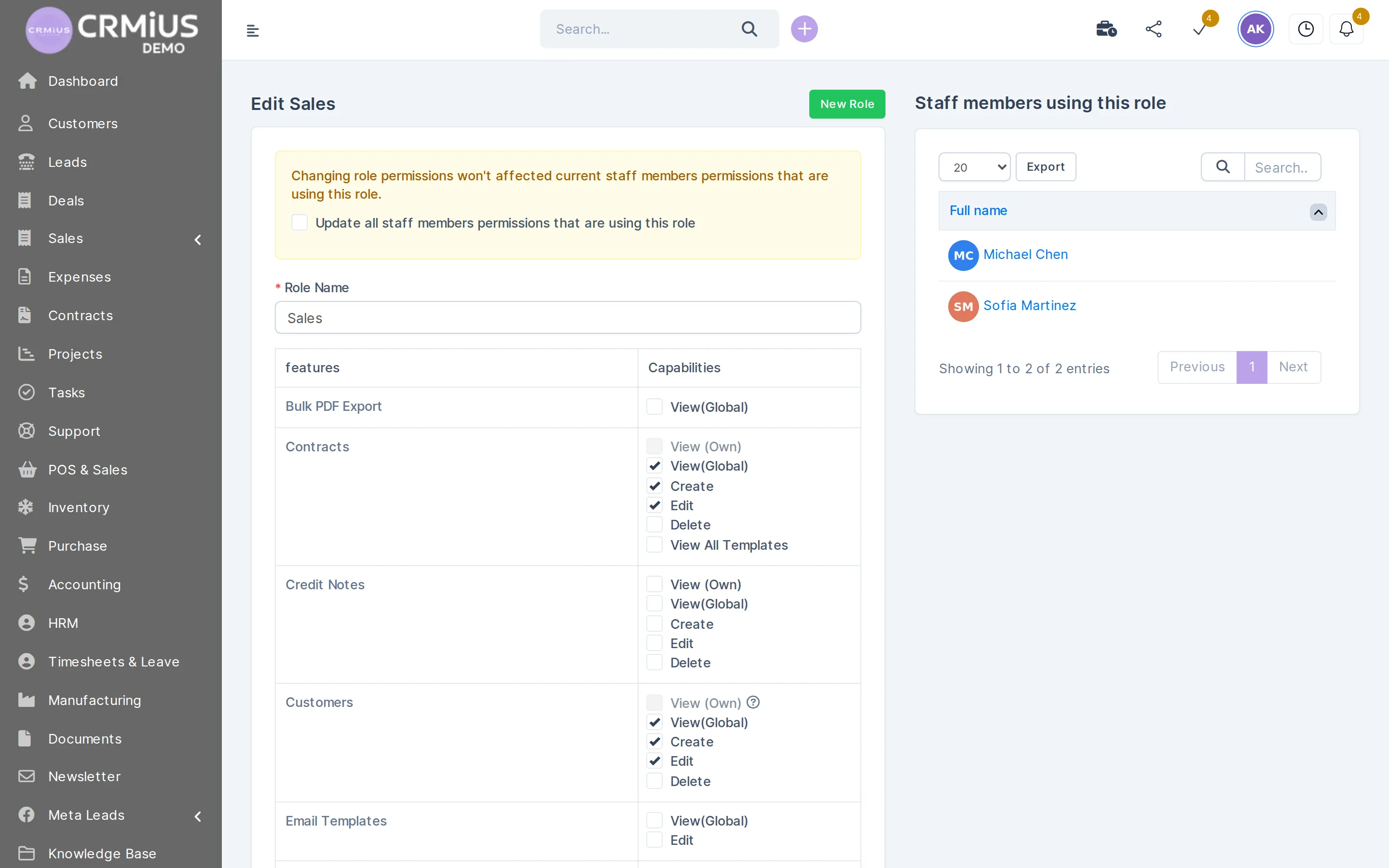
An access rights management system decides what each employee can see and change. In CRMiUS you create roles such as Sales or Support and, for every module, tick View (Own), View (Global), Create, Edit or Delete. One role serves many staff members, single permissions can be changed for one person, and administrators keep full access.
- Permissions per feature: customers, leads, estimates, invoices, payments, contracts, projects, tasks, expenses, reports and more
- View (Own) for the records a person owns or is assigned to, View (Global) for every record
- Create, edit and delete set separately: a manager can issue invoices and still have no right to delete them
- Changes for a single employee, and a list of staff using each role
- Activity log with the user and time of important actions
Price: roles and permissions are part of the CRMiUS platform on every plan: Basic $100 a month, Advanced (Pro) $150, Corporate priced individually. 10% off with annual payment. 14-day free trial with full access, no bank card. Compare plans
Permission matrix: who may do what in each module
This is how the demo company Northwind Supply Co. splits access between four roles. Each letter is a separate tick in the role editor; administrators are left out of the table because they have every permission.
| Module | Sales | Project delivery | Support | Operations |
|---|---|---|---|---|
| Customers | VCE | V | VE | V |
| Leads | VD | — | — | — |
| Estimates and proposals | VCE | — | — | — |
| Invoices | VCE | — | V | V |
| Payments | VC | — | — | — |
| Items | V | — | V | VCE |
| Contracts | VCE | V | — | — |
| Projects | — | VCE | — | — |
| Tasks | VCE | VCED | VCE | VCE |
| Expenses | — | VC | — | VCE |
| Knowledge base | — | V | VCE | — |
| Reports | V | — | — | V |
Read it by rows: invoices are created by Sales and only viewed by Support and Operations; projects belong to Project delivery; every role works with tasks, and only Project delivery may delete them. Each tick on the role screen is the same decision, made once for the whole job.
How to set up roles in CRMiUS
Five steps, from an empty list of roles to a team where everyone sees their part of the CRM.
- 01Create a roleName it after a job: Sales, Accounting, Warehouse, Support. New Role
- 02Tick capabilities per featureView (Own), View (Global), Create, Edit, Delete. Some features have their own extra ticks, for example viewing all contract templates. View (Own)View (Global)
- 03Assign the role to staffThe role is chosen in the staff member’s profile, and its permissions are copied to that person. The role screen lists every staff member using it.
- 04Adjust one personAdd or remove a single permission for one employee, with no extra role for that.
- 05Change the role laterWhen you edit a role, tick “Update all staff members permissions that are using this role” to pass the change to everyone; leave it empty and current staff keep their permissions. update all staff
What administrators control in CRMiUS
Own or all records
View (Own) shows a person only the records they own or are assigned to; View (Global) opens all of them. A sales manager sees their own customers, the head of sales sees the whole base.
Each action separately
View, create, edit and delete are separate ticks: an accountant can view and edit invoices, a support agent only views them.
Every module
Customers, leads, estimates, invoices, payments, credit notes, contracts, projects, tasks, expenses, items, knowledge base and reports. Customer data lives in contact and customer management.
Special rights
Some features carry their own ticks, such as bulk PDF export or viewing all contract templates.
One employee
Permissions are stored per person, so one employee can differ from the role without a new role being created.
Role updates
A change to a role reaches current staff only when you choose so; the role screen shows who uses it.
Customer portal
Your clients log in to their own portal and see their invoices, estimates, proposals, projects, tickets and contracts, and pay online.
Trail of actions
The activity log records important actions with the user and the time.
Role examples by department
Starting points taken from the demo company. Rename them and move the ticks to match how your team works.
Sales
Customers, estimates, proposals, invoices and contracts: view, create, edit. Payments: view and record. Reports: view. No right to delete invoices.
Project delivery
Projects: view, create, edit. Tasks: full rights. Expenses: view and add. Customers and contracts: view only. More in project management.
Support
Customers: view and edit. Knowledge base: view, create, edit. Invoices and items: view only, to answer billing questions.
Operations
Items and expenses: view, create, edit. Invoices and customers: view only. Reports: view.
Access rules that keep customer data safe

Roles work best with a few habits:
- Start narrow. Give a new role view rights first and add create, edit and delete as the job needs them.
- Keep delete rights rare. Invoices, payments and contracts are easier to correct than to restore.
- Review on every move. When someone changes department, change their role on the same day; when someone leaves, mark their staff account inactive.
- Few administrators. Administrators see everything and change settings, so keep this right with the people who run the system.
- Look at the activity log when a record changed unexpectedly: it shows who did what and when.
The platform itself runs over SSL with regular backups, and the CRMiUS Shield security toolset is installed. Companies with many departments, branches and approval levels will find more on CRM for large companies; banks and lenders on CRM for banks and financial services.
How to test roles in 14 days
In the public live demo the role settings are locked, so you can look at the modules there; your own roles are built in the free trial.
- 01
Start the trial
Full access for 14 days, no bank card.
- 02
List the jobs
Write down who does what: sales, accounting, warehouse, support, projects.
- 03
Build the roles
One role per job, with ticks per module as in the matrix above.
- 04
Add your staff
Create staff accounts, choose a role for each, adjust single permissions where needed.
- 05
Check the result
Ask each colleague what they see, and look at the activity log after a few days of work.
Where roles decide access
- Contact and customer management (CRM)Who sees which customers and contacts.
- Sales and leads managementWho sees all leads and who only their own.
- Finance and invoicingWho issues invoices, records payments and sees expenses.
- Document managementWho opens which document folders.
- Warehouse and inventory managementWho works with items and stock.
- Project managementWho creates projects and who only works on tasks.
Roles set up for your company
Roles and permissions come with every plan, so the price depends on the rest of what you need. Prices are per month in USD; annual payment saves 10%, and from 10 users the terms are individual.
Basic
$100
- Contacts and customers
- Tasks and projects
- Google Workspace
- Key reports
- Roles and permissions
Advanced (Pro)
$150
- Everything in Basic
- Finance module
- Time tracking
- Helpdesk
- Analytics and dashboards
Corporate
Individually
- Everything in Pro
- POS terminal support
- Personal manager
- Module and interface customization
- Priority support
If you want roles built around your structure, personalized configuration of modules and interface and team training are available as additional services; technical support works 24/7 on every plan.
Questions and answers
What is an access rights management system in a CRM?
The part of the CRM that decides what each employee can see and change: which modules, which actions (view, create, edit, delete) and whether they see all records or only their own. In CRMiUS it works through roles.
What is the difference between View (Own) and View (Global)?
View (Own) shows an employee only the records they own or are assigned to, for example their own customers. View (Global) shows every record in that module.
Can one employee have different permissions from their role?
Yes. Permissions are stored per staff member, so you can add or remove a single permission for one person without creating a new role.
What happens to staff when I change a role?
By default, current staff keep their permissions. Tick “Update all staff members permissions that are using this role” when saving, and the change reaches everyone with that role.
Can our customers log in, and what do they see?
Yes, through the customer portal. A client sees their own invoices, estimates, proposals, projects, tickets and contracts and can pay invoices online.
Is there a log of who changed what?
Yes. The activity log records important actions with the user and the time.
Can you set up roles for our company?
Yes. Personalized configuration of modules and interface and team training are available as additional services, and the Corporate plan includes module and interface customization with a personal manager.
How much does access rights management cost?
Roles and permissions are part of every plan: Basic $100 a month, Advanced (Pro) $150, Corporate priced individually. Annual payment saves 10%, and every plan starts with a 14-day free trial without a bank card. All plans.
Modules
- Contact and customer management (CRM)→
- Finance and invoicing→
- Warehouse and inventory management→
- Project management→
- Marketing and newsletters→
- Reports and dashboards→
- Task management→
- Customer support→
- IP telephony→
- E-signature for contracts→
- Sales and leads management→
- Logistics and inventory→
- Document management→
- Procurement management→
- HR management→
Start 14-day free trial
- 14 days free, no card
- from $100 / month
- 30+ connected modules
- 5 interface languages